This problem has been reported to occur when Outlook 2000 (CW) is configured with the MS Mail service, and is not set as the default Microsoft Windows mail client. this method only apply if you have installed Outlook with the Corporate or Workgroup option. With this option, you can use Messaging Application Programming Interface (MAPI) services. To determine your installation type, click About Microsoft Outlook on the Help menu. If you have the Corporate or Workgroup installation, you see "Corporate or Workgroup".
If you use the Microsoft Word Send To command, you may receive the following error message:
Microsoft Outlook
Either there is no default mail client or the current mail client cannot fulfill the messaging request. Please run Microsoft Outlook and set it as the default mail client.
To resolve this problems go through
Quit all mail-aware programs. This includes all Microsoft Office programs and e-mail clients. Open Microsoft Internet Explorer version 5.0 or later, and follow these steps to set Outlook as your default e-mail program:
1. On the Tools menu, click Internet Options.
2. On the Programs tab, in the E-mail list, click to select Microsoft Outlook. Do not click Outlook Express.
3. Click OK.
Showing posts with label Online Outlook Support. Show all posts
Showing posts with label Online Outlook Support. Show all posts
Monday, November 17, 2008

Monday, November 10, 2008
Microsoft Exchange Event Service won't start after uninstall of Office 2000
This error occur during the removal of Office unregistered a shared server and client library, Esconf.dll. This file is the Microsoft Exchange Event Service Configuration Object Library
If you run the Windows Installer to install Outlook and other Microsoft Office 2000 components on a Microsoft Exchange Server system and subsequently remove the Office 2000 components, the Exchange Event Service will fail to start. The Event Viewer will display the following error message if the server is Windows NT 4.0:
Could not start the Microsoft Exchange Event Service on. Error 2140: An internal Windows NT error occurred.
If the server is Windows 2000, the Microsoft Management Console displays the following error:
Could not start the Microsoft Exchange Event Service on Local Computer. The service did not return an error. This could be an internal Windows error or an internal service error. If the problem persists, contact your system administrator.
Resolution for this problems
In the scenario described above, there will actually be two copies of Esconf.dll on the server, one installed originally by Exchange Server and the other by Office. The uninstallation of Office removes only the copy that was installed by Office.
To manually register Esconf.dll, follow these steps:
1. On the Exchange Server computer, click Start, point to Programs and then click Command Prompt.
2. Type the following command:
CD Exchsrvr\Bin
3. Type the following command:
Regsvr32 Esconf.dll
4. Close the Command Prompt.
5. On the Start menu, point to Settings and then click Control Panel.
6. Double-click Services and click the Microsoft Exchange Event Service. Click Start.
7. Once the service shows in the list as started, close the Services control panel.
NOTE: The location of the binary libraries on your Microsoft Windows NT computer running Exchange Server may vary. You should alter the path in Step 2 above accordingly.
If you run the Windows Installer to install Outlook and other Microsoft Office 2000 components on a Microsoft Exchange Server system and subsequently remove the Office 2000 components, the Exchange Event Service will fail to start. The Event Viewer will display the following error message if the server is Windows NT 4.0:
Could not start the Microsoft Exchange Event Service on
If the server is Windows 2000, the Microsoft Management Console displays the following error:
Could not start the Microsoft Exchange Event Service on Local Computer. The service did not return an error. This could be an internal Windows error or an internal service error. If the problem persists, contact your system administrator.
Resolution for this problems
In the scenario described above, there will actually be two copies of Esconf.dll on the server, one installed originally by Exchange Server and the other by Office. The uninstallation of Office removes only the copy that was installed by Office.
To manually register Esconf.dll, follow these steps:
1. On the Exchange Server computer, click Start, point to Programs and then click Command Prompt.
2. Type the following command:
CD Exchsrvr\Bin
3. Type the following command:
Regsvr32 Esconf.dll
4. Close the Command Prompt.
5. On the Start menu, point to Settings and then click Control Panel.
6. Double-click Services and click the Microsoft Exchange Event Service. Click Start.
7. Once the service shows in the list as started, close the Services control panel.
NOTE: The location of the binary libraries on your Microsoft Windows NT computer running Exchange Server may vary. You should alter the path in Step 2 above accordingly.
Wednesday, November 5, 2008
The Windows XP-Based Fax Service Does Not Transfer Incoming Faxes to Your Inbox in Outlook 2000 or Outlook 2002
You cannot use the Windows XP-based Fax service to transfer incoming faxes into your Inbox in Outlook 2000 or Outlook 2002. This behavior occurs because Messaging Application Programming Interface (MAPI) for the Fax service is not supported on computers that are running Windows XP. On Windows XP-based computers, you can send faxes only to a folder in which the fax is saved as a fax file.
Work Around for Resolution
1. When you are prompted to specify routing options for incoming faxes, click the option to store a copy of the fax in a folder, and then locate a folder in which you want to store the faxes.
2. Start either Outlook 2000 or Outlook 2002.
3. On the File menu, point to New, and then click Mail Message.
4. Attach the fax file to the message. To do this, click File on the Insert menu, and then locate and click the file to attach it to the message.
5. Send the message to yourself or to the fax recipient.
For More Information and fix to this problem visit on www.iyogi.net
Work Around for Resolution
1. When you are prompted to specify routing options for incoming faxes, click the option to store a copy of the fax in a folder, and then locate a folder in which you want to store the faxes.
2. Start either Outlook 2000 or Outlook 2002.
3. On the File menu, point to New, and then click Mail Message.
4. Attach the fax file to the message. To do this, click File on the Insert menu, and then locate and click the file to attach it to the message.
5. Send the message to yourself or to the fax recipient.
For More Information and fix to this problem visit on www.iyogi.net
Monday, November 3, 2008
Troubleshoot Error The Internet Email Service is not installed properly
The Internet Email Service is not installed properly" error message when you start Outlook 2000 or Outlook 2002. This behavior can occur if the installation of Microsoft Outlook Express is corrupt, or if Outlook Express is not installed on your computer.
If you try to start one of the versions of Microsoft Outlook that is listed at the beginning of this article, you may receive the following error message:
The Internet Email Service is not installed properly. Please reinstall Outlook and choose the Corporate or Workgroup mode.
RESOLUTION
To resolve this behavior, download and reinstall Microsoft Internet Explorer to reinstall Outlook Express. For more information about how to obtain Internet Explorer from Microsoft, and get Online Outlook Support to resolve this error.
If you try to start one of the versions of Microsoft Outlook that is listed at the beginning of this article, you may receive the following error message:
The Internet Email Service is not installed properly. Please reinstall Outlook and choose the Corporate or Workgroup mode.
RESOLUTION
To resolve this behavior, download and reinstall Microsoft Internet Explorer to reinstall Outlook Express. For more information about how to obtain Internet Explorer from Microsoft, and get Online Outlook Support to resolve this error.
Thursday, October 23, 2008
OFFXP: Arial Unicode Font Is Not Available in Office Setup
SYMPTOMS
When you install Microsoft Office XP, the Universal Font (Arial Unicode MS) installation option may not be available.
CAUSE
This problem occurs when you are running a bi-directional version of Microsoft Windows 98.
MORE INFORMATION
When you install Office XP on a computer that is running bi-directional Windows 98, the following occur:
• Office XP updates the installer.
• Office XP updates the Core System and Data Access components.
• Fonts that are available for installation under the International Support components of Office XP are as follows:
• Armenian and Georgian
• Hindi
• Syriac
• Japanese
• Tamil
• Korean
• Traditional Chinese
• Simplified Chinese
No listing is available for Universal (Arial Unicode MS) under any of the Office XP components.
For more information about multilingual and international support, click Microsoft Word Help on the Help menu, type multiple languages in the Office Assistant or the Answer Wizard, and then click Search to view the topics returned
APPLIES TO
• Microsoft Office XP Professional Edition
• Microsoft Office XP Small Business Edition
• Microsoft Office XP Standard Edition
• Microsoft Office XP Standard Edition for Students and Teachers
• Microsoft Office XP Developer Edition
• Microsoft Access 2002 Standard Edition
• Microsoft Excel 2002 Standard Edition
• Microsoft FrontPage 2002 Standard Edition
• Microsoft Outlook 2002 Standard Edition
• Microsoft PowerPoint 2002 Standard Edition
• Microsoft Word 2002 Standard Edition
When you install Microsoft Office XP, the Universal Font (Arial Unicode MS) installation option may not be available.
CAUSE
This problem occurs when you are running a bi-directional version of Microsoft Windows 98.
MORE INFORMATION
When you install Office XP on a computer that is running bi-directional Windows 98, the following occur:
• Office XP updates the installer.
• Office XP updates the Core System and Data Access components.
• Fonts that are available for installation under the International Support components of Office XP are as follows:
• Armenian and Georgian
• Hindi
• Syriac
• Japanese
• Tamil
• Korean
• Traditional Chinese
• Simplified Chinese
No listing is available for Universal (Arial Unicode MS) under any of the Office XP components.
For more information about multilingual and international support, click Microsoft Word Help on the Help menu, type multiple languages in the Office Assistant or the Answer Wizard, and then click Search to view the topics returned
APPLIES TO
• Microsoft Office XP Professional Edition
• Microsoft Office XP Small Business Edition
• Microsoft Office XP Standard Edition
• Microsoft Office XP Standard Edition for Students and Teachers
• Microsoft Office XP Developer Edition
• Microsoft Access 2002 Standard Edition
• Microsoft Excel 2002 Standard Edition
• Microsoft FrontPage 2002 Standard Edition
• Microsoft Outlook 2002 Standard Edition
• Microsoft PowerPoint 2002 Standard Edition
• Microsoft Word 2002 Standard Edition
Wednesday, October 15, 2008
OL 2002: Mail Retrieval Problems Occur When You Receive POP Mail
SYMPTOMS
If you use Outlook to download messages by using the Post Office Protocol 3 (POP3) protocol, the following message retrieval problems may occur:
• Messages that you expect to be deleted from the server after retrieval are not deleted.
• Messages that you purposefully leave on the server are downloaded again the next time a mail retrieval occurs. As a result, duplicate messages are created.
• You are prompted to log on to the server repeatedly during the download and your credentials are not accepted.
CAUSE
These problems occur because the POP3 retrieval design in Outlook 2002 sometimes does not issue the POP3 commands for retrieving and deleting messages in the same communication session. A Request for Comment (RFC) requirement that indicates that the RETR and DELE commands must occur in one session does not exist. However, the commands must exist in one session in certain server implementations of POP3. For example, if a POP3 sever allows only one logon during a time interval (for example, five minutes), when Outlook performs a second logon to complete the RETR/DELE command set during this time period, the second logon is rejected.
RESOLUTION
To resolve this problem, obtain the latest service pack for Microsoft Office XP. For additional information, click the following article number to view the article in the Microsoft Knowledge Base:
307841 OFFXP: How to Obtain the Latest Office XP Service Pack
In Outlook 2002 SP2, the POP3 retrieval design has been changed so that the RETR/DELE sequence is always completed in the same POP3 session.
STATUS
Microsoft has confirmed that this is a problem in the Microsoft products that are listed at the beginning of this article. This problem was first corrected in Microsoft Office XP Service Pack 2 (SP-2).
MORE INFORMATION
The Outlook 2002 SP2 design change that is described in this article also allows the QUIT command to be included in POP3 protocol logging. Before the design change, the QUIT command was issued after the log file was written. As a result, it seemed that the QUIT command was never issued. The new design shows the QUIT command correctly in the log files
APPLIES TO
• Microsoft Outlook 2002 Service Pack 2
If you use Outlook to download messages by using the Post Office Protocol 3 (POP3) protocol, the following message retrieval problems may occur:
• Messages that you expect to be deleted from the server after retrieval are not deleted.
• Messages that you purposefully leave on the server are downloaded again the next time a mail retrieval occurs. As a result, duplicate messages are created.
• You are prompted to log on to the server repeatedly during the download and your credentials are not accepted.
CAUSE
These problems occur because the POP3 retrieval design in Outlook 2002 sometimes does not issue the POP3 commands for retrieving and deleting messages in the same communication session. A Request for Comment (RFC) requirement that indicates that the RETR and DELE commands must occur in one session does not exist. However, the commands must exist in one session in certain server implementations of POP3. For example, if a POP3 sever allows only one logon during a time interval (for example, five minutes), when Outlook performs a second logon to complete the RETR/DELE command set during this time period, the second logon is rejected.
RESOLUTION
To resolve this problem, obtain the latest service pack for Microsoft Office XP. For additional information, click the following article number to view the article in the Microsoft Knowledge Base:
307841 OFFXP: How to Obtain the Latest Office XP Service Pack
In Outlook 2002 SP2, the POP3 retrieval design has been changed so that the RETR/DELE sequence is always completed in the same POP3 session.
STATUS
Microsoft has confirmed that this is a problem in the Microsoft products that are listed at the beginning of this article. This problem was first corrected in Microsoft Office XP Service Pack 2 (SP-2).
MORE INFORMATION
The Outlook 2002 SP2 design change that is described in this article also allows the QUIT command to be included in POP3 protocol logging. Before the design change, the QUIT command was issued after the log file was written. As a result, it seemed that the QUIT command was never issued. The new design shows the QUIT command correctly in the log files
APPLIES TO
• Microsoft Outlook 2002 Service Pack 2
Friday, October 10, 2008
Spam Blockers For Outlook Express
Everyone has a spam problem, it's pervasive! Everyday, millions of unsolicited emails are being sent out to unsuspecting internet users all over the world. What can you do about your spam problem? The email software application you use will often dictate your final spam filtering solution. If you use Outlook than you will need an Outlook spam blocker. If you use Outlook Express you'll need an Outlook Express spam blocker. Each piece of software is designed specifically for the specified Outlook email program and will be the most effective spam blocker for that program.
If you use Microsoft Outlook than you will definitely help from an Outlook spam stacker. There are so many different behaviors that spammers get a list of addresses, and the right filter program will stack spam from many of those sources.
There are a number of different types of programs designed for Outlook extract. Mailwasher Pro and Spam persecute are just a few of the stack of programs that are open to help answer your jettison email problem.
How greatly do these programs expense? Are there released Outlook extract spam stackers? Well, like any software program an Outlook extract spam stacker will scale in outlay depending on what you are looking for. However, the mean outlay is approximately $30. Many of the different programs do propose released trials so that you can try the program out before you acquire it. Other programs will propose money back secure so that you can buy chance released.
If you do not have an Outlook spam stacker you will have to live with unsolicited emails, pornography, get calorific abrupt schemes, and maddening stack marketing. Or you can try other methods such as altering your email address frequently or treatment the setting to the Spammers ISPs.
The small expense of an Outlook spam stacker is well appeal the time, frustration and inconvenience of sifting through hundreds of unsolicited email and jettison. Pending there is an unending solution or elimination of spam altogether we must rely on software to help us out.
If you use Microsoft Outlook than you will definitely help from an Outlook spam stacker. There are so many different behaviors that spammers get a list of addresses, and the right filter program will stack spam from many of those sources.
There are a number of different types of programs designed for Outlook extract. Mailwasher Pro and Spam persecute are just a few of the stack of programs that are open to help answer your jettison email problem.
How greatly do these programs expense? Are there released Outlook extract spam stackers? Well, like any software program an Outlook extract spam stacker will scale in outlay depending on what you are looking for. However, the mean outlay is approximately $30. Many of the different programs do propose released trials so that you can try the program out before you acquire it. Other programs will propose money back secure so that you can buy chance released.
If you do not have an Outlook spam stacker you will have to live with unsolicited emails, pornography, get calorific abrupt schemes, and maddening stack marketing. Or you can try other methods such as altering your email address frequently or treatment the setting to the Spammers ISPs.
The small expense of an Outlook spam stacker is well appeal the time, frustration and inconvenience of sifting through hundreds of unsolicited email and jettison. Pending there is an unending solution or elimination of spam altogether we must rely on software to help us out.
Sunday, October 5, 2008
MS Outlook Password Recovery Techniques
MS Outlook Password Recovery recovers lost or forgotten passwords to the Microsoft Outlook e-mail accounts and password-protected Personal Storage files (*.pst).
MS Outlook Password Recovery is a program to recover lost or forgotten passwords to the Microsoft Outlook e-mail accounts and password-protected Personal Storage files (*.pst). All passwords are recovered instantly regardless of length.
Here is a brief list of MS Outlook Password Recovery advantages:
* Recovers e-mail address, server address, server type, login and password for all Outlook e-mail accounts;
* Recovers passwords for the Outlook personal folder files (*.PST);
* All passwords are recovered instantly;
* Storing the retrieved information in the formatted text file;
* Copying and pasting the retrieved password using the clipboard;
* Multilingual passwords are supported;
* All versions of Outlook(2003/XP/2000/98/97) are supported;
* User-friendly interface;
* Full install/uninstall support.
Main Interface: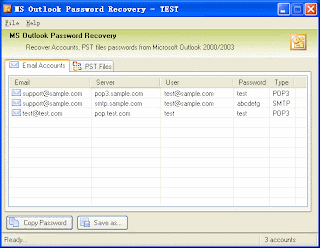
System Requirements
* Windows 9x/ME/NT 4.x/2000/XP/2003;
* VB runtime files;
* About 1 megabyte of free space on hard disk.
* Outlook 2003/XP/2000/98/97
MS Outlook Password Recovery is a program to recover lost or forgotten passwords to the Microsoft Outlook e-mail accounts and password-protected Personal Storage files (*.pst). All passwords are recovered instantly regardless of length.
Here is a brief list of MS Outlook Password Recovery advantages:
* Recovers e-mail address, server address, server type, login and password for all Outlook e-mail accounts;
* Recovers passwords for the Outlook personal folder files (*.PST);
* All passwords are recovered instantly;
* Storing the retrieved information in the formatted text file;
* Copying and pasting the retrieved password using the clipboard;
* Multilingual passwords are supported;
* All versions of Outlook(2003/XP/2000/98/97) are supported;
* User-friendly interface;
* Full install/uninstall support.
Main Interface:

System Requirements
* Windows 9x/ME/NT 4.x/2000/XP/2003;
* VB runtime files;
* About 1 megabyte of free space on hard disk.
* Outlook 2003/XP/2000/98/97
Tuesday, September 30, 2008
Turn an Outlook item into another type of item
You can also view an animated version of this procedure, Animation. I am discussing how to turn an Outlook item into another type. You can get outlook support through this post. I hope it is useful for the outlook users.
Has this happened to you? You've had a lengthy e-mail conversation and now you realize a face-to-face meeting is necessary. Instead of creating a new meeting request and then copying and pasting text from the e-mail message, you can use the Outlook AutoCreate feature to quickly create a meeting request and capture all the information in your e-mail thread. And best of all, AutoCreate lets you convert any item into an item of another type, such as a contact into a task or a note into an appointment.
Turn an Outlook item into another type of item
- Drag the message onto the Calendar icon on the Outlook Bar.
- Enter the location for the meeting, and then make any changes and select any additional options you want on the Appointment tab. (Relevant information from the message has already been added to fields in the new meeting request. The entire message appears in the meeting text box.)
- On the Actions menu, click Invite Attendees.
- Enter a name or names in the to box.
- Click Send.
That's it. You've turned an e-mail message into a meeting. Now that you know how easy it is to use AutoCreate, see what other kinds of items you can create from existing items.
Note If you prefer menu commands, you can select the item and then click Copy to Folder on the Edit menu to create a new item.
Thursday, September 25, 2008
Outlook Compatibility Issue
Here *.pst is the name of outlook file to which you are trying to open.
After this error message, the outlook pst file(s) become(s) inaccessible and you can’t use them any more.
This problem generally occurs if you try to open a pst file in outlook 2003 or 2007 that has been created in lower versions. The problem occurs due to compatibility issues because Outlook 2003 and 2007 supports different Unicode structure as compared to lower versions.
The same problem can also occur if the file is corrupted or damaged. The file may get damaged due to virus attack or if you try to open a lower version file in Outlook 2003 or 2007 again and again, then due to compatibility issues the file may get damaged.
In such situations, repairing the corrupted outlook pst files is required to access them normally and recover your business as the corrupted pst files may contain your important emails, precious business contacts, meeting schedules and much more.
The pst repair can be performed with the help of third party pst repair software. These software are the application tools designed to repair the corrupted outlook pst files and extract data from them.
These software are very easy to use and don’t require any prior technical knowledge in order to repair and restore the pst files. The pst repair software can be used in almost all instances of pst corruption.
Stellar Phoenix Outlook Pst Repair software is the most popular and fabulous outlook recovery software that can be used in such instances of Outlook pst corruption. This outlook recovery software uses powerful scanning algorithms to search and locate the lost data and repair and restore them.
This pst repair software provides an interactive user interface and completely GUI supporting environment. So that it can be used very easily by all of the users even if the user doesn’t have any prior technical knowledge of using outlook pst repair software.
Stellar Phoenix Outlook Pst repair software is compatible with all file versions of Microsoft Office Outlook Support such as Outlook 2007, 2003, 2002/XP and 2002. This pst recovery software is capable to repair all of the components of your Outlook account including emails, contacts, notes, schedule, journal and other personal storage files.
Thursday, September 18, 2008
How to automatically manage incoming messages
You can set up rules to have Outlook 2002 help you manage incoming e-mail messages. For example, Outlook can:
- Alert you when you receive a message from your supervisor.
- Move messages that have the text "Meeting Minutes" in the Subject line to your Meetings folder.
- Flag incoming messages that are from a distribution list.
To set up a rule which provide Outlook Support to do this?
- On the Tools menu, click Rules Wizard.
- Click New.
- Click an action in the upper list.
- Customize the action in the lower list.
- Click Next.
- Provide any additional information based on the action that you selected.
- Click Finish.
Note After step 7, you will see a message: This rule is a client-only rule, and will process only when Outlook is running. This isn't an error message; it just indicates that this rule resides on your computer and is only active when Outlook is running. Server-side rules (rules that reside on a server) are active regardless of whether Outlook is currently running or not.
Tuesday, September 9, 2008
Outlook 2002 Product Description
Outlook version 2002 makes working with e-mail, tasks, contacts, and appointments more intuitive without requiring users to learn new ways of accomplishing their tasks or spend time searching for the right tools. A variety of security enhancements have been included in Outlook version 2002 to help users feel more secure when working with e-mail. Setup and configuration have been made simpler with such enhancements as single-integrated e-mail mode, customization enhancements in the Custom Installation Wizard, and a simplified interface for setting up e-mail accounts.
New features include AutoComplete Addressing: As a user enters an e-mail address, Outlook automatically recognizes it and completes the name based on previously sent e-mail to the recipient. Users can also now access e-mail from their Hotmail accounts (or other Internet mail providers) directly from within Outlook. Users with multiple e-mail accounts can choose on a per-message basis what account to use to send their message. With Word as the default e-mail editor, users can take advantage of the smart tags that are available in Word (including AutoCorrect, paste options, address, name, date, or customizable smart tags). Smart tags are context-sensitive buttons that give users the options and information they need at the time they need them.
Users can now easily change between different mail formats on the fly and on a per-message basis. By giving users the option to switch between HTML, rich text, or plain text, they can more easily format their message so that the recipient can have the best viewing experience. Mailbox Cleanup allows users to view the size of their mailbox, search for files by size or by age, and then delete, move, or archive those files to clear up space. Exchange users can also automatically be notified when they are approaching their mailbox size limit and choose from the above options for cleaning up their mailbox. And Outlook can now automatically clean up plain text e-mail formatting that often contains extra line breaks that make the message difficult to read. Outlook automatically removes the extra line breaks (an option exists to turn this off as well) when a user opens an e-mail message, previews the message in the preview pane, or prints the message so that it is easier to read.
Tuesday, August 26, 2008
How to Use Outlook with Covad.net
You can use Outlook with your Covad.net e-mail account. The following steps set up Outlook to both receive and send e-mail messages with your Covad.net account.
Note You can receive your Covad.net e-mail messages by using Outlook from most places with an Internet connection. However, to send e-mail messages, you must be connected directly to the Covad.net service or use an alternate Simple Mail Transfer Protocol (SMTP) e-mail server on the service you are using at that location. For example, if you want to check your Covad.net e-mail account at work, configure Outlook to use your work SMTP server to send messages.
Do one of the following:
Add your Covad.net e-mail account
- On the Tools menu, click E-mail Accounts.
- Click Add a new e-mail account, and then click Next.
- Click POP3, and then click Next.
- Under User Information, do the following:
- In the Your Name box, type your full name the way that you want it to appear to other people.
- In the E-mail Address box, type your e-mail user name, followed by @covad.net.
- Under Server Information, do the following:
- In the Incoming mail server (POP3) box, type pop3.covad.net.
- In the Outgoing mail server (SMTP) box, type smtp.covad.net.
- Under Logon Information, do the following:
- In the User Name box, type your user name provided by Covad.net.
- In the Password box, type your password.
- Select the Remember password check box.
Note You have the option to have Outlook remember your password by typing it in the Password box and selecting the Remember password check box. Having Outlook remember your password means that you won't have to type your password each time you access the account; however, it also means that the account is vulnerable to anyone who has access to your computer.Use strong passwords that combine upper- and lowercase letters, numbers, and symbols. Weak passwords don't mix these elements. Strong password: Y6dh!et5. Weak password: House27. Use a strong password that you can remember so that you don't have to write it down.
- To verify that your account is working, click Test Account Settings. If there is missing or incorrect information, such as your password, you are prompted to supply or correct it. Make sure your computer is connected to the Internet.
- Click More Settings.
- On the General tab, under Mail Account, type Covad.net.
- Click OK, and then click Next.
- Click Finish.
Notes
- Do not select the Log on using Secure Password Authentication (SPA) check box.
- Unless specified by Covad.net, all server and address entries are typed in lowercase letters. For more go to Outlook Support
Remove your Covad.net e-mail account
- On the Tools menu, click E-mail Accounts.
- Click View or change existing e-mail accounts, and then click Next.
- Click the Covad.net e-mail account that you want to remove, and then click Remove.
- Click Finish.
Thursday, August 7, 2008
Access your work e-mail and schedule from home
With the prevalence of computers and Internet connections at home, you may have wondered how you can access your work e-mail and schedule in Outlook 2002 from your home computer, handheld PC, or Pocket PC.
With Outlook, you can send and receive e-mail messages and share other information from your office, from home, and from the road. At the office, you typically connect to a server on a local network. At home or on the road, you can manage your e-mail messages and other items on your work computer in one of the following ways:
• From a desktop or laptop computer using the Remote Mail or Offline Folder feature in Outlook.
• From a mobile device, such as a Pocket PC or handheld PC.
This article gives you an overview of how each option works and tells you where to get more information and provide Outlook Support.
Using a Pocket PC or handheld PC
The Pocket PC and handheld PCs are types of mobile devices, that is, information appliances that are more similar to a TV than to a desktop computer. Both devices offer a version of Outlook that runs on the device, as well as the ability to synchronize the information on the device with your office and/or home computer. You can view your e-mail on your Pocket PC or handheld PC online. Messages that you receive through your regular ISP (such as MSN® and AOL), your corporate network, and your Internet-based e-mail (such as MSN® Hotmail®) can show up in your Inbox on your Pocket PC or handheld PC.
By using Microsoft ActiveSync® on your Microsoft Windows®-based computer, you can synchronize your Pocket PC or handheld PC with your desktop PC over both direct and remote connections. These devices connect to your desktop or laptop computer for synchronization using a USB (Universal Serial Bus) cable or a serial cable, or infrared connection. You can also connect using a modem (with network Remote Access Service, or RAS, server access), or you can connect to a LAN using a network (Ethernet) card. For details about Pocket PC functionality, visit the Pocket PC Web page. For details about handheld PC functionality, visit the Handheld PC Features: Hardware Web page.
With Outlook, you can send and receive e-mail messages and share other information from your office, from home, and from the road. At the office, you typically connect to a server on a local network. At home or on the road, you can manage your e-mail messages and other items on your work computer in one of the following ways:
• From a desktop or laptop computer using the Remote Mail or Offline Folder feature in Outlook.
• From a mobile device, such as a Pocket PC or handheld PC.
This article gives you an overview of how each option works and tells you where to get more information and provide Outlook Support.
Using a Pocket PC or handheld PC
The Pocket PC and handheld PCs are types of mobile devices, that is, information appliances that are more similar to a TV than to a desktop computer. Both devices offer a version of Outlook that runs on the device, as well as the ability to synchronize the information on the device with your office and/or home computer. You can view your e-mail on your Pocket PC or handheld PC online. Messages that you receive through your regular ISP (such as MSN® and AOL), your corporate network, and your Internet-based e-mail (such as MSN® Hotmail®) can show up in your Inbox on your Pocket PC or handheld PC.
By using Microsoft ActiveSync® on your Microsoft Windows®-based computer, you can synchronize your Pocket PC or handheld PC with your desktop PC over both direct and remote connections. These devices connect to your desktop or laptop computer for synchronization using a USB (Universal Serial Bus) cable or a serial cable, or infrared connection. You can also connect using a modem (with network Remote Access Service, or RAS, server access), or you can connect to a LAN using a network (Ethernet) card. For details about Pocket PC functionality, visit the Pocket PC Web page. For details about handheld PC functionality, visit the Handheld PC Features: Hardware Web page.
Friday, July 25, 2008
How to hide headers when viewing e-mail messages
Thankfully, you don't have to view or print long e-mail headers anymore. Microsoft Outlook Support ® provides several ways to hide or to remove previous information from the From, To, Cc, and Bcc fields when you view and print messages.
Outlook makes it easy to hide headers when you view e-mail messages on screen.
To hide message headers in Outlook 2002
1. On the View menu, point to Current View, and then click Customize Current View.
2. In the View Summary dialog box, click Other Settings.
3. Under Preview Pane, select the Show Preview Pane and Hide header information check boxes, and then click OK twice.
To hide message headers in Outlook 2000, 98, and 97
1. Open the e-mail message containing the header you want to hide.
2. On the View menu, click Message Header. Outlook 2000 hides all fields except the Subject line. Outlook 98 and 97 hide all fields except the From line.
Outlook makes it easy to hide headers when you view e-mail messages on screen.
To hide message headers in Outlook 2002
1. On the View menu, point to Current View, and then click Customize Current View.
2. In the View Summary dialog box, click Other Settings.
3. Under Preview Pane, select the Show Preview Pane and Hide header information check boxes, and then click OK twice.
To hide message headers in Outlook 2000, 98, and 97
1. Open the e-mail message containing the header you want to hide.
2. On the View menu, click Message Header. Outlook 2000 hides all fields except the Subject line. Outlook 98 and 97 hide all fields except the From line.
Monday, July 21, 2008
Scheduling interviews and meetings Using Outlook 2002
Students can easily schedule and keep track of appointments with the people they interview, as well as set up group meetings by using the distribution lists that they have created. If the people to be interviewed also are using Outlook Support, the students can send meeting invitations and even schedule online meetings.
To schedule a meeting by using a distribution list
- In the Outlook Calendar, click the day you want to hold the meeting, and then double-click the specific time.
- In the appointment form, click Invite Attendees.
- In the To box, add the distribution list name for the group of people you want to attend.
- If you want, click the Check Names button to make sure that the e-mail addresses you added are correct.
- Add a note to explain the purpose of the meeting.
- Click Send.
This will put the meeting on each student's calendar as well as notify attendees, who can RSVP simply by clicking the Accept, Tentative, or Decline button. People who are not using Microsoft Exchange servers must accept or reject the proposed meeting time by replying to the e-mail message.
Thursday, July 10, 2008
How to Talk With Internet Telephony
You can make talk with cheap with internet Telephony. Now I am discussing some thing about Email Support and further continuing with latest update about Email .With the deregulation of the U.S. telecommunications industry, the price of phone calls has plummeted in recent years. But even at reduced rates, monthly charges can added up for chatty folks. A new technology, Internet telephony, also known as VoIP (Voice over Internet Protocol) virtually eliminates long distances charges, allowing you to call almost anywhere in the world for the price of a local call. If you have broadband Internet access, you can't beat the price--it's practically free.
Digital Dialing
With Internet telephony or VoIP, you place a voice call either from your computer to another person's computer or to a landline or mobile phone. When calling from computer-to-computer, both parties must have compatible telephony software and be online at the same time. At the moment, there are no universal standards, so be sure to determine which software the person you want to call uses. Calling from computer-to-telephone is simpler, because only you need the software. You can download telephony software and it's free. In either case, you'll also need some hardware: a sound card (most computers already have one installed), a microphone and speakers (or a headset).
Digital Dialing
With Internet telephony or VoIP, you place a voice call either from your computer to another person's computer or to a landline or mobile phone. When calling from computer-to-computer, both parties must have compatible telephony software and be online at the same time. At the moment, there are no universal standards, so be sure to determine which software the person you want to call uses. Calling from computer-to-telephone is simpler, because only you need the software. You can download telephony software and it's free. In either case, you'll also need some hardware: a sound card (most computers already have one installed), a microphone and speakers (or a headset).
Friday, July 4, 2008
To save a vCard file to a convenient location
Business cards are a great way to share information about yourself and your company when you want to network with others-potential clients, employees, employers, businesses whose services you want to use, friends, and so on. However, relying on printed business cards alone can be risky: You and the people you give them to can lose them, misplace them, or run out just when encountering a valuable contact. A handy solution is electronic business cards, called vCards (virtual business cards), which you can send in e-mail using Outlook.
Think how much handier it'll be for recipients when your business card is stored on their computers. No more digging through briefcases or wallets for a little piece of paper! And think how much easier it'll be for them to share your information with others when they can send your electronic business card to anyone they exchange e-mail with Outlook Support.
Before you can send a vCard, you must enter in Contacts the information for the person whose business card you're going to send. This includes adding an entry for yourself if you're going to send your own business card.
Follow the steps to save a vCard file…
- Click Contacts, and then select the contact you want to open.
- On the File menu, point to Open, and then click Selected Items.
- In the contact, on the File menu, click Export to vCard. Specify the location where you want to save the file, and then click Save. When you want to insert the file in an item that you have opened, on the Insert menu in the item, click File, and then select the .vcf file.
When you receive a vCard file from someone else, you can transfer the information to Contacts to automatically create a contact for that person. Once the information is in Contacts, you can forward it at any time as a vCard.
Subscribe to:
Posts (Atom)