SYMPTOMS
If you use Outlook to download messages by using the Post Office Protocol 3 (POP3) protocol, the following message retrieval problems may occur:
• Messages that you expect to be deleted from the server after retrieval are not deleted.
• Messages that you purposefully leave on the server are downloaded again the next time a mail retrieval occurs. As a result, duplicate messages are created.
• You are prompted to log on to the server repeatedly during the download and your credentials are not accepted.
CAUSE
These problems occur because the POP3 retrieval design in Outlook 2002 sometimes does not issue the POP3 commands for retrieving and deleting messages in the same communication session. A Request for Comment (RFC) requirement that indicates that the RETR and DELE commands must occur in one session does not exist. However, the commands must exist in one session in certain server implementations of POP3. For example, if a POP3 sever allows only one logon during a time interval (for example, five minutes), when Outlook performs a second logon to complete the RETR/DELE command set during this time period, the second logon is rejected.
RESOLUTION
To resolve this problem, obtain the latest service pack for Microsoft Office XP. For additional information, click the following article number to view the article in the Microsoft Knowledge Base:
307841 OFFXP: How to Obtain the Latest Office XP Service Pack
In Outlook 2002 SP2, the POP3 retrieval design has been changed so that the RETR/DELE sequence is always completed in the same POP3 session.
STATUS
Microsoft has confirmed that this is a problem in the Microsoft products that are listed at the beginning of this article. This problem was first corrected in Microsoft Office XP Service Pack 2 (SP-2).
MORE INFORMATION
The Outlook 2002 SP2 design change that is described in this article also allows the QUIT command to be included in POP3 protocol logging. Before the design change, the QUIT command was issued after the log file was written. As a result, it seemed that the QUIT command was never issued. The new design shows the QUIT command correctly in the log files
APPLIES TO
• Microsoft Outlook 2002 Service Pack 2
Showing posts with label Outlook Support. Show all posts
Showing posts with label Outlook Support. Show all posts
Wednesday, October 15, 2008

Friday, October 10, 2008
Spam Blockers For Outlook Express
Everyone has a spam problem, it's pervasive! Everyday, millions of unsolicited emails are being sent out to unsuspecting internet users all over the world. What can you do about your spam problem? The email software application you use will often dictate your final spam filtering solution. If you use Outlook than you will need an Outlook spam blocker. If you use Outlook Express you'll need an Outlook Express spam blocker. Each piece of software is designed specifically for the specified Outlook email program and will be the most effective spam blocker for that program.
If you use Microsoft Outlook than you will definitely help from an Outlook spam stacker. There are so many different behaviors that spammers get a list of addresses, and the right filter program will stack spam from many of those sources.
There are a number of different types of programs designed for Outlook extract. Mailwasher Pro and Spam persecute are just a few of the stack of programs that are open to help answer your jettison email problem.
How greatly do these programs expense? Are there released Outlook extract spam stackers? Well, like any software program an Outlook extract spam stacker will scale in outlay depending on what you are looking for. However, the mean outlay is approximately $30. Many of the different programs do propose released trials so that you can try the program out before you acquire it. Other programs will propose money back secure so that you can buy chance released.
If you do not have an Outlook spam stacker you will have to live with unsolicited emails, pornography, get calorific abrupt schemes, and maddening stack marketing. Or you can try other methods such as altering your email address frequently or treatment the setting to the Spammers ISPs.
The small expense of an Outlook spam stacker is well appeal the time, frustration and inconvenience of sifting through hundreds of unsolicited email and jettison. Pending there is an unending solution or elimination of spam altogether we must rely on software to help us out.
If you use Microsoft Outlook than you will definitely help from an Outlook spam stacker. There are so many different behaviors that spammers get a list of addresses, and the right filter program will stack spam from many of those sources.
There are a number of different types of programs designed for Outlook extract. Mailwasher Pro and Spam persecute are just a few of the stack of programs that are open to help answer your jettison email problem.
How greatly do these programs expense? Are there released Outlook extract spam stackers? Well, like any software program an Outlook extract spam stacker will scale in outlay depending on what you are looking for. However, the mean outlay is approximately $30. Many of the different programs do propose released trials so that you can try the program out before you acquire it. Other programs will propose money back secure so that you can buy chance released.
If you do not have an Outlook spam stacker you will have to live with unsolicited emails, pornography, get calorific abrupt schemes, and maddening stack marketing. Or you can try other methods such as altering your email address frequently or treatment the setting to the Spammers ISPs.
The small expense of an Outlook spam stacker is well appeal the time, frustration and inconvenience of sifting through hundreds of unsolicited email and jettison. Pending there is an unending solution or elimination of spam altogether we must rely on software to help us out.
Sunday, October 5, 2008
MS Outlook Password Recovery Techniques
MS Outlook Password Recovery recovers lost or forgotten passwords to the Microsoft Outlook e-mail accounts and password-protected Personal Storage files (*.pst).
MS Outlook Password Recovery is a program to recover lost or forgotten passwords to the Microsoft Outlook e-mail accounts and password-protected Personal Storage files (*.pst). All passwords are recovered instantly regardless of length.
Here is a brief list of MS Outlook Password Recovery advantages:
* Recovers e-mail address, server address, server type, login and password for all Outlook e-mail accounts;
* Recovers passwords for the Outlook personal folder files (*.PST);
* All passwords are recovered instantly;
* Storing the retrieved information in the formatted text file;
* Copying and pasting the retrieved password using the clipboard;
* Multilingual passwords are supported;
* All versions of Outlook(2003/XP/2000/98/97) are supported;
* User-friendly interface;
* Full install/uninstall support.
Main Interface: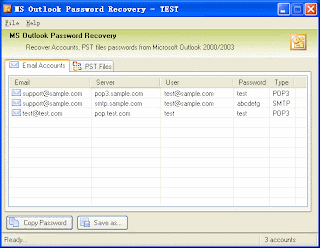
System Requirements
* Windows 9x/ME/NT 4.x/2000/XP/2003;
* VB runtime files;
* About 1 megabyte of free space on hard disk.
* Outlook 2003/XP/2000/98/97
MS Outlook Password Recovery is a program to recover lost or forgotten passwords to the Microsoft Outlook e-mail accounts and password-protected Personal Storage files (*.pst). All passwords are recovered instantly regardless of length.
Here is a brief list of MS Outlook Password Recovery advantages:
* Recovers e-mail address, server address, server type, login and password for all Outlook e-mail accounts;
* Recovers passwords for the Outlook personal folder files (*.PST);
* All passwords are recovered instantly;
* Storing the retrieved information in the formatted text file;
* Copying and pasting the retrieved password using the clipboard;
* Multilingual passwords are supported;
* All versions of Outlook(2003/XP/2000/98/97) are supported;
* User-friendly interface;
* Full install/uninstall support.
Main Interface:

System Requirements
* Windows 9x/ME/NT 4.x/2000/XP/2003;
* VB runtime files;
* About 1 megabyte of free space on hard disk.
* Outlook 2003/XP/2000/98/97
Tuesday, September 30, 2008
Turn an Outlook item into another type of item
You can also view an animated version of this procedure, Animation. I am discussing how to turn an Outlook item into another type. You can get outlook support through this post. I hope it is useful for the outlook users.
Has this happened to you? You've had a lengthy e-mail conversation and now you realize a face-to-face meeting is necessary. Instead of creating a new meeting request and then copying and pasting text from the e-mail message, you can use the Outlook AutoCreate feature to quickly create a meeting request and capture all the information in your e-mail thread. And best of all, AutoCreate lets you convert any item into an item of another type, such as a contact into a task or a note into an appointment.
Turn an Outlook item into another type of item
- Drag the message onto the Calendar icon on the Outlook Bar.
- Enter the location for the meeting, and then make any changes and select any additional options you want on the Appointment tab. (Relevant information from the message has already been added to fields in the new meeting request. The entire message appears in the meeting text box.)
- On the Actions menu, click Invite Attendees.
- Enter a name or names in the to box.
- Click Send.
That's it. You've turned an e-mail message into a meeting. Now that you know how easy it is to use AutoCreate, see what other kinds of items you can create from existing items.
Note If you prefer menu commands, you can select the item and then click Copy to Folder on the Edit menu to create a new item.
Tuesday, August 26, 2008
How to Use Outlook with Covad.net
You can use Outlook with your Covad.net e-mail account. The following steps set up Outlook to both receive and send e-mail messages with your Covad.net account.
Note You can receive your Covad.net e-mail messages by using Outlook from most places with an Internet connection. However, to send e-mail messages, you must be connected directly to the Covad.net service or use an alternate Simple Mail Transfer Protocol (SMTP) e-mail server on the service you are using at that location. For example, if you want to check your Covad.net e-mail account at work, configure Outlook to use your work SMTP server to send messages.
Do one of the following:
Add your Covad.net e-mail account
- On the Tools menu, click E-mail Accounts.
- Click Add a new e-mail account, and then click Next.
- Click POP3, and then click Next.
- Under User Information, do the following:
- In the Your Name box, type your full name the way that you want it to appear to other people.
- In the E-mail Address box, type your e-mail user name, followed by @covad.net.
- Under Server Information, do the following:
- In the Incoming mail server (POP3) box, type pop3.covad.net.
- In the Outgoing mail server (SMTP) box, type smtp.covad.net.
- Under Logon Information, do the following:
- In the User Name box, type your user name provided by Covad.net.
- In the Password box, type your password.
- Select the Remember password check box.
Note You have the option to have Outlook remember your password by typing it in the Password box and selecting the Remember password check box. Having Outlook remember your password means that you won't have to type your password each time you access the account; however, it also means that the account is vulnerable to anyone who has access to your computer.Use strong passwords that combine upper- and lowercase letters, numbers, and symbols. Weak passwords don't mix these elements. Strong password: Y6dh!et5. Weak password: House27. Use a strong password that you can remember so that you don't have to write it down.
- To verify that your account is working, click Test Account Settings. If there is missing or incorrect information, such as your password, you are prompted to supply or correct it. Make sure your computer is connected to the Internet.
- Click More Settings.
- On the General tab, under Mail Account, type Covad.net.
- Click OK, and then click Next.
- Click Finish.
Notes
- Do not select the Log on using Secure Password Authentication (SPA) check box.
- Unless specified by Covad.net, all server and address entries are typed in lowercase letters. For more go to Outlook Support
Remove your Covad.net e-mail account
- On the Tools menu, click E-mail Accounts.
- Click View or change existing e-mail accounts, and then click Next.
- Click the Covad.net e-mail account that you want to remove, and then click Remove.
- Click Finish.
Subscribe to:
Posts (Atom)